
API - MQTT
Every unispa device is equipped with an MQTT protocol serving for a daily communication with the device. Unlike HTTP , MQTT API is not capable of granting full control over the system or program settings. Its designation is limited to:
- Obtaining sensor readings and output states
- Accessing basic program settings, especially times and thresholds
- Sending basic commands
The necessary prerequisite for using the MQTT API is active and stable connection to an MQTT broker. In choosing one, the user can choose from the following two main options:
- Hosting own broker - this itself contains a wide variety of options ranging from having a microcomputer like
Raspberry PIconnected to your local area network, to reserving capacity on a professional online server. - Using external service - there is a plenty of ready-to-use online MQTT brokers ranging from free to industrial grade services.
A unispa device may connect to all the options contained above. Whatever the final broker choice, all necessary connection details can be provided on the Wireless set-up page. You may also want to check our MQTT connection tutorial for a practical quide and examples.
MQTT Message
The main unit of the MQTT exchange is a message consisting of the Payload carrying the data and the Topic carrying the context.
While the Payload of the unispa MQTT messages only contain a simple numeric, logical or time value,
Topic of those messages is crucial for addressing the right subject of the right device.
JSON form.Addressing the device
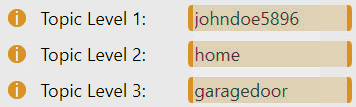
The first task is to identify the device to communicate with. This purpose is served by setting up the first three levels of the MQTT message topic accessible in the Wireless set-up page. The user may define each of the first three topic levels there. Each may be up to 25 characters long and the first one must not be empty.
UTF-8-compatible characters other than + , # (wildcards) or / (separator).- Topic Level 1 is compulsory and serves mainly to identify the user. It is a good practice to set it equal to the broker account user name, or any unique string assigned to this account.
- Topic Level 2 is optional and is intended to identify the place of duty or designation. It is a good practice to briefly describe the device's location here.
- Topic Level 3 is optional and is intended to unambiguously identify the device in case of a larger concentration of devices is used in a single location. It is a good practice to set it equal to the device Name.
By adding another level flagging the message direction - pub for outbound and sub for inbound message from the device perspective -
we arrive at the pub/sub Topic roots representing the main basis for the two-way communication with the device. All messages sent by the device then have their topics starting with:
[Topic L1] / [Topic L2]* / [Topic L3]* /pub/
, just as all messages accepted by the device must have topics starting with:
[Topic L1] / [Topic L2]* / [Topic L3]* /sub/
Finally, as long as the Subscription is enabled, the device is automatically subscribed to receive all messages satisfying following topic rule:
[Topic L1] / [Topic L2]* / [Topic L3]* /sub/#
Similarly, the user may receive all messages published by the device by subscribing to:
[Topic L1] / [Topic L2]* / [Topic L3]* /pub/#
# is a wildcard meaning any valid continuation of the topic. Please check the MQTT protocol for more details.IoT MQTT Panel will let you define a dashboard prefix which is automatically added to each individual panel.
Setting it equal to the Topic root (with or without
pub/ or sub/)
may save a significant effort when setting up your personalised dashboard.Addressing the subject
Once the required Device is identified, the remaining topic levels will address the desired subject of the MQTT message. These can be divided into 3 main groups as detailed out in the following sections:
- Telemetry - sensor readings and output states
- Parameters - basic program settings, especially times and thresholds
- Commands - basic executable instructions
Telemetry
To receive the required telemetry data as a payload, the user needs to subscribe to messages with the following topic:
[Topic L1] / [Topic L2]* / [Topic L3]* /pub/ [TELEMETRY]
All telemetry messages are sent with Retain = true and QoS = 0.
For detailed reference on the message Payload and topic's [TELEMETRY] please consult the table below:
| [TELEMETRY] | Payload | Note | Relevance |
|---|---|---|---|
tempmain | numeric reading | Primary temperature reading on I2 (T1NTC). | Cabin |
tempaux | Secondary temperature reading on I4 (T2NTC). | ||
tempdht | Temperature / Rel. Humidity reading from DHT22 on D4. | ||
humdht | |||
temp1 | Temperature reading of the cold pool 1 on I3 (T1NTC). | Kneipp | |
temp2 | Temperature reading of the cold pool 2 on I4 (T2NTC). | ||
temp3 | Temperature reading of the hot pool 1 on I5 (T3NTC). | ||
temp4 | Temperature reading of the hot pool 2 on I6 (T4NTC). | ||
RE1/output | "0" - Off, or "1" - On | Respective relay state as per the valid configuration. | All, according to the valid configuration |
RE2/output | |||
RE3/output | |||
RE4/output | |||
RE5/output | |||
RE6/output | |||
RE7/output | |||
RE8/output | |||
RE9/output | |||
RE10/output | |||
RE11/output | |||
RE12/output |
Technical messages
Several technical messages are automatically published 30 seconds after a successful connection to an MQTT broker and then repeatedly every 5 minutes for the entire duration of the session:
Minimal option is selected for the MQTT connection, the technical messages are only sent once upon establishing connection with the broker and are not repeated afterwards.- Connection status - with the
Payloadequal to1and the following topic:
[Topic L1]/[Topic L2]*/[Topic L3]*/pub/conn * if non-emptyAt the same time, a Testament message is saved within the broker using the same topic and
Payloadequal to0.The Testament (i.e., Will, or Last Will) message is automatically delivered to all subscribed clients up to 30 seconds after the device's connection with the broker is lost. - IP address - with the latest local network IPv4 address as
Payloadand the topic as follows:
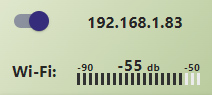
[Topic L1]/[Topic L2]*/[Topic L3]*/pub/ip * if non-empty - Wi-Fi RSSI - with the Wi-Fi signal strength (RSSI) as
Payloadand the topic as follows:
[Topic L1]/[Topic L2]*/[Topic L3]*/pub/rssi * if non-empty
Parameters
To set or change the selected program parameter,
publish the message with the new value as a payload and the following topic:
[Topic L1] / [Topic L2]* / [Topic L3]* /sub/ [PARAMETER]
Sending the message with Retain = true will allow to keep the respective parameter updates in real time throughout all devices connected to the given topic.
For detailed reference on the message Payload and topic's [PARAMETER] please consult the table below:
| [PARAMETER] | Variable | Payload | Note | Relevance |
|---|---|---|---|---|
masterstate | Main state | 0 for OFF, or 1 for On, or 2 for Auto, or 3 for Sleep, or 4 for Test |
Determines the main operating state of the program. note: Changes made to the physical switch override the saved value and vice versa. | All |
timefrom1 | Operation | HH:MM in 24h format (HH:MM:SS also accepted, although seconds are ignored) | Module's operation start time for the respective days of the week. | |
timefrom2 | ||||
timefrom3 | ||||
timefrom4 | ||||
timefrom5 | ||||
timefrom6 | ||||
timefrom7 | ||||
timeto1 | Module's operation end time for the respective days of the week. | |||
timeto2 | ||||
timeto3 | ||||
timeto4 | ||||
timeto5 | ||||
timeto6 | ||||
timeto7 | ||||
endtimefrom | Drain | Start and end time of the automated water drain. | Kneipp | |
endtimeto | ||||
ledmod | Mode (LED) | Follow here for value reference | Main program Mode of the RGB driver to be played. | All |
ledspd | Speed (LED) | integer between 0 and 100 |
Determines the maximum Speed of the RGB driver program. | |
ledbrt | Brightness (LED) | Determines the maximum Brightness of the LED's. | ||
ledhex | Color (LED) | standard 6-digit (non-abbreviated) RGB hex code #RRGGBB** (web color) |
Determines the base color for the RGB program. Only effective for relevant programs. | Kneipp Pool |
pirmod | PIR circuit | 0 for NC, or 1 for NO |
Circuit of the PIR sensor in the resting state (no movement detected) | Kneipp |
fillmod | Fill mode | 0 for Timer, or 1 for Thermostat |
Pools' operating Mode: Timer - filling is regulated by the set times. Thermostat - filling is regulated by the preset temperatures. | |
fillup | Filling-up | 0 for Disabled, or 1 for Enabled |
If Enabled, the modules operation is initiated by Filling-up the pools with warm and cold water, respectively.
It should be Disabled if the pools are usually filled prior to the program start.
note: Changes made to the physical switch override the saved value and vice versa. | |
airpump | Air pump | decimal number between 0 and 9999.9 |
Time for which an Air pump is running following a movement detected by the PIR sensor (in minutes with up to 1 decimal place). | |
timhoton | Refilling | Duration of the ON/OFF-phase of the Refill timer cycle for warm / cold pools (in minutes with up to 1 decimal place). Only relevant if the Timer Fill mode is selected. | ||
timcoldon | ||||
timhotoff | Pause (Refilling) | |||
timcoldoff | ||||
filluphot | Fill-up (pools) | Fill-up time for the warm/cold pools (in minutes with up to 1 decimal place) at the beginning of the operation if allowed. | ||
fillupcold | ||||
tempcoldmin | Min. Temp. | integer between 0 and 40 | The lower / upper bound of the warm / cold pools' Temperature range to be maintained. Only relevant if the Thermostat Fill mode is selected. | |
temphotmin | ||||
tempcoldmax | Max. Temp. | |||
temphotmax | ||||
saunaopt | Configuration | 0 for None,or 12: Steamcabin, or 13: Biosauna, or 14: Hot sauna, or 15: Herbalinhalation |
Defines the main hardware Configuration of the cabin module. | Cabin |
heatpower | Power | integer between 0 and 100 |
Power of the steam or heat generator in % when re-heating. Only active when the temperature reading is in the predefined range. | |
dsmpower | DSM Power | As long as the incoming DSM signal is HIGH, the power output cannot exceed this value, overriding the standard operation. | ||
humidlow | Min./Max. Humidity | The lower / upper bound of the ambient air's Relative Humidity range to be maintained. | ||
humidhigh | ||||
templow | Min./Max. Temperature | integer between 0 and 105 | The lower / upper bound of the ambient air's Temperature range to be maintained. | |
temphigh | ||||
aromaopt | Aroma | 0 for Auto, or 1 for Aroma A, or 2 for Aroma B, or 3 for Aroma C |
Selects the Aroma for dosing. | |
aromaon | Aroma on / wait | integer between 0 and 255 | Duration of the ON (dosing) / OFF (waiting) phase of the Aroma dosing timer cycle. (ON phase expressed in seconds, OFF phase is in minutes with up to 1 decimal place). Only active when the temperature reading is in operating range. | |
aromaoff | decimal number between 0 and 9999.9 | |||
sprinkleon | Sprinkler on / wait | integer between 0 and 255 | Duration of the ON (sprinkling) / OFF (waiting) phase of the sauna stones Sprinkler timer cycle. (ON phase expressed in seconds, OFF phase is in minutes with up to 1 decimal place) | |
sprinkleoff | decimal number between 0 and 9999.9 | |||
venton | Vent on / wait | Duration of the ON (valve closed) / OFF (valve open) phase of the Ventilation timer cycle. (in minutes with up to 1 decimal place). Only active when the temperature reading is in operating range. | ||
ventoff | ||||
recircon | Recirculation on / wait | Duration of the ON (recirculating) / OFF (waiting) phase of the Recirculation timer cycle. (in minutes with up to 1 decimal place). Only active when the temperature reading is in operating range. | ||
recircoff | ||||
heaton | Heating / Wait time | Duration of the ON (heating) / OFF (waiting) phase of the Heating timer cycle. (in minutes with up to 1 decimal place). Only active when the temperature reading is in operating range. | ||
heatoff |
Commands
To execute the selected command, publish the message with the following topic:
[Topic L1] / [Topic L2]* / [Topic L3]* /pub/ [COMMAND]
Retain = false as otherwise the command will be executed after every subscription to the MQTT.
Please note that the retained messages can only be overwritten with a new payload, but not withdrawn or deleted.
This makes retain useful for sensor readings, but undesirable for one-off commands.For detailed reference on the message Payload and topic's [COMMAND] please consult the table below:
| [COMMAND] | Note |
|---|---|
reboot | Reboots the device. |